CachyOS Kernel, Virtual Machines and 3D Acceleration
How to get 3D acceleration working in virtual machines on AlmaLinux 10 with the CachyOS kernel using QEMU and Distrobox.
I had some challenges getting 3D acceleration to work on AlmaLinux 10 with the CachyOS kernel. It worked fine with the standard AlmaLinux kernel, but not with the CachyOS kernel.
I tested yesterday with ELRepo’s mainline kernel, and that didn’t work either. I don’t know what the AlmaLinux team does to make it work flawlessly with their kernel, because I tried comparing the config parameters for all kernels and the ones I thought were relevant had the same values across all kernels.
As a CachyOS kernel maintainer, this was a rather frustrating scenario, because I want to use my own product (“eat my own dog food” so to speak). This made me go back to the AlmaLinux kernel, but my new laptop (an ASUS TUF Gaming F16 FX608JHR) is too new to use this 6.12 kernel — various things didn’t work properly: for example, when I turned the computer back on after it had been in sleep mode, my wireless network card was completely off and couldn’t even be seen in lspci output.
So I was forced to get it working on a newer kernel.
Luckily I found the solution. The problem is that it doesn’t work in Gnome Boxes and Virt-Manager, but it works in QEMU directly.
I want to thank @Head_on_a_Stick on the Arch Linux forum for coming up with a solution that worked.
Next Problem: QEMU on AlmaLinux
Since AlmaLinux doesn’t support the qemu-system-x86_64 command directly, I figured out I could get this command onto my system via a CachyOS Distrobox container.
Start by installing Distrobox:
sudo dnf install distrobox
Then you can create a CachyOS container:
distrobox create --image cachyos/cachyos-v3 --name cachyos
Add –nvidia to the above command if you have an Nvidia card and want access to it from the container.
You can then run QEMU in this container:
distrobox enter cachyos
The QEMU packages can probably be installed individually, but I installed Gnome Boxes because it’s an easy interface to create and install the virtual machine and then open it manually in QEMU.
sudo pacman -Syu gnome-boxes
You can now run Gnome Boxes by running the “gnome-boxes” command and create and install a virtual machine without 3D acceleration enabled (which is the default).
Once you have installed the machine, you can open it in QEMU with the following command:
cd ~/.local/share/gnome-boxes/images
qemu-system-x86_64 \
                                   -enable-kvm \
                                   -m 4G \
                                   -cpu host \
                                   -smp $(nproc) \
                                   -device virtio-vga-gl \
                                   -device intel-hda \
                                   -device hda-duplex \
                                   -display gtk,gl=on \
                                   -device virtio-net-pci,netdev=net0 \
                                   -netdev user,id=net0 \
                                   -drive file={VM filename},format=qcow2,cache=none,if=virtio
Replace {VM filename} (including the curly braces) with the name of your VM file. The virtual machine is set to have 4GB RAM and all cores on your CPU. You can change this by editing the -m and -smp parameters.
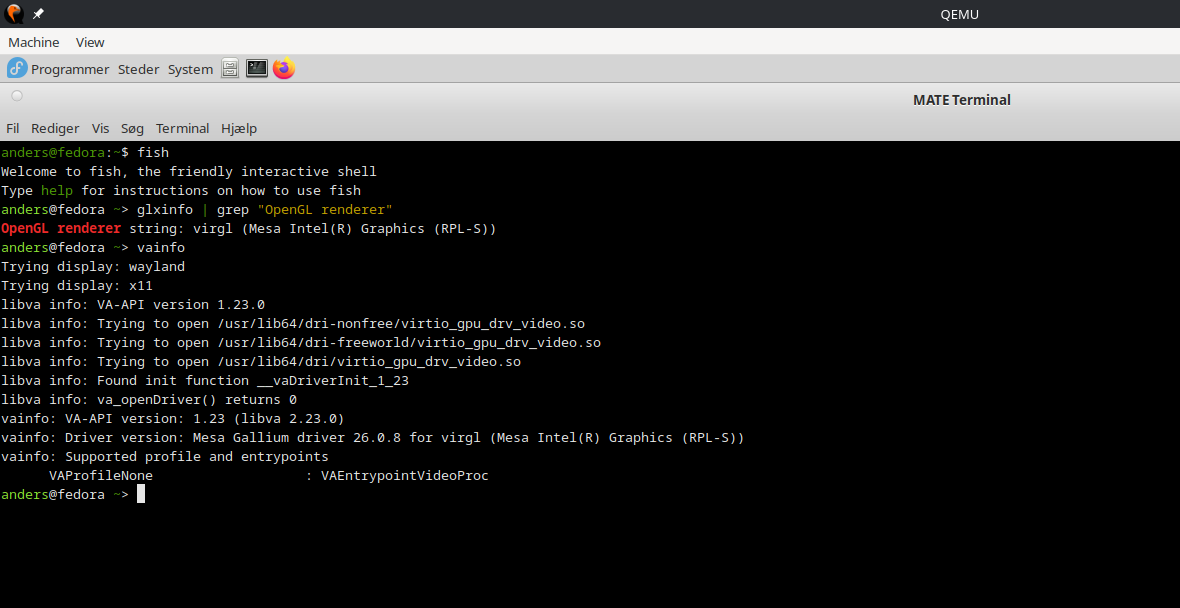
After this, your VM should start up. If it’s a Linux VM, you can test whether you have 3D acceleration in the VM with the commands:
glxinfo | grep "OpenGL renderer:"
vainfo
If glxinfo says virgl and vainfo reports no errors, then 3D acceleration is working in your VM.
Here you can see a screenshot from my Fedora MATE VM: